Importing and matching Purchase Orders (POs) on Ramp Bill Pay
Overview
Available on Ramp Plus. See Ramp Plus overview for plan details.
Ramp Bill Pay users can now integrate their purchase order (PO) workflow with their accounts payable (AP) workflow within Ramp, giving finance and accounting teams more speed, time, and controls while processing AP.
Accounts Payable and Admin roles on Bill Pay can import POs from their connected accounting software and match them to bills within Ramp. Once linked to a PO, the 2-way matched bill will sync back to the accounting provider for a complete 3-way match with Items Receipt in the accounting provider (if configured).
Note: PO import is supported for NetSuite, Sage Intacct, and QuickBooks Online. You can also import POs via Universal CSV. Multi-PO matching (linking multiple POs to one bill) is available for NetSuite and Universal CSV.
What ERP-imported POs can and cannot do
POs auto-imported from your accounting provider (such as NetSuite, Sage Intacct, or QuickBooks Online) are designed for bill matching only — they let you link incoming invoices in Ramp Bill Pay to POs that originate in your ERP. These POs behave differently from POs created natively in Ramp:
| Capability | Ramp-created POs | ERP-imported POs |
|---|---|---|
| Appear in the Procurement > Purchase Orders list | Yes | No |
| Match to bills in Bill Pay | Yes | Yes |
| Issue virtual cards or funds | Yes | No |
| Request again or create contract | Yes | No |
| Sync status from ERP (Open, Fully Billed, Closed) | N/A | Yes |
| Link to ERP record | If synced | Yes — "View PO" links to the ERP |
ERP-imported POs do not appear in your Procurement > Purchase Orders list. They appear only in Bill Pay when you match a PO to a bill, and on matched bills with an Imported badge and a link back to the ERP record. You cannot issue virtual cards or funds against an ERP-imported PO — the PO must be created in Ramp for fund issuance. See Virtual Cards on Purchase Orders.
Note: These limitations apply to POs auto-imported from your accounting provider. POs added through bulk import appear in the Purchase Orders list and have different capabilities. If you need both ERP-level tracking and Ramp fund issuance, create the PO natively in Ramp and sync it to your accounting provider.
Enabling Ramp to import purchase orders
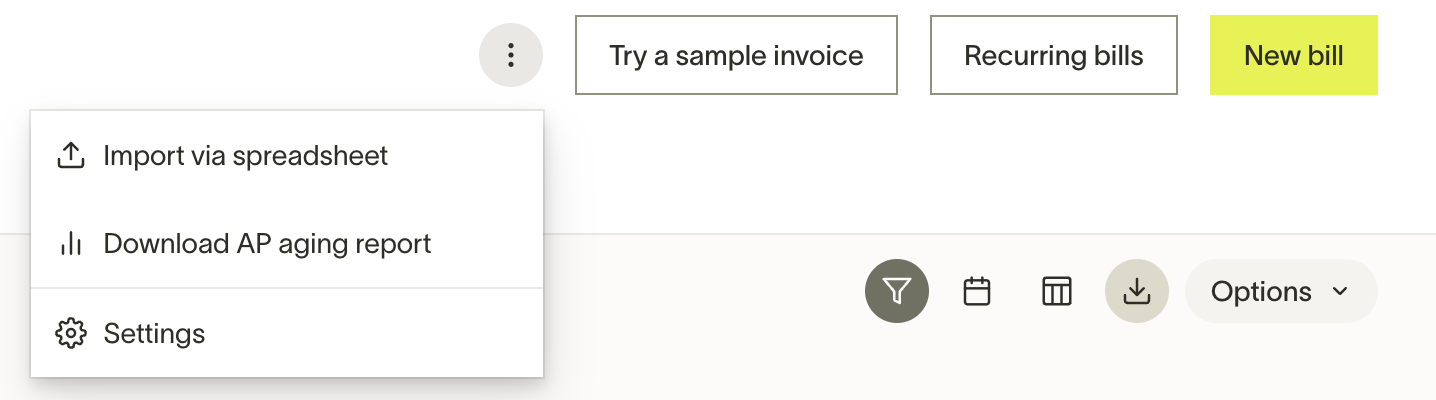
Navigate to the Bill Pay Settings page by clicking on the three dots in the upper right corner.
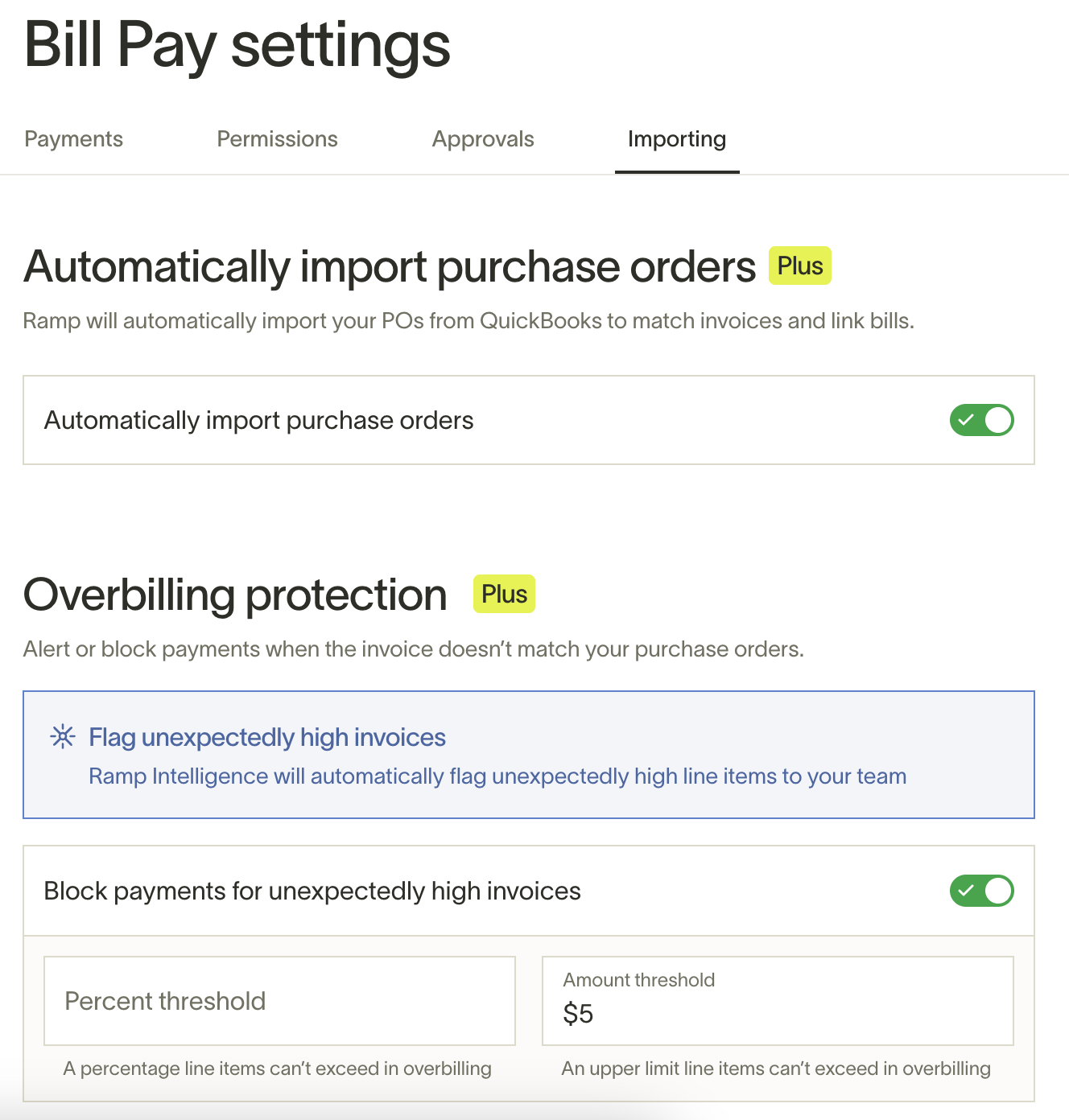
Go to the "Importing" tab of the settings page and toggle on "Automatically Import Purchase Orders". Ramp will import any open Purchase Orders from your connected accounting provider.
Read more about Overbilling protection here.
Note: Closed or Fully Billed Purchase Orders will not be imported into Ramp.
Matching purchase orders to bills
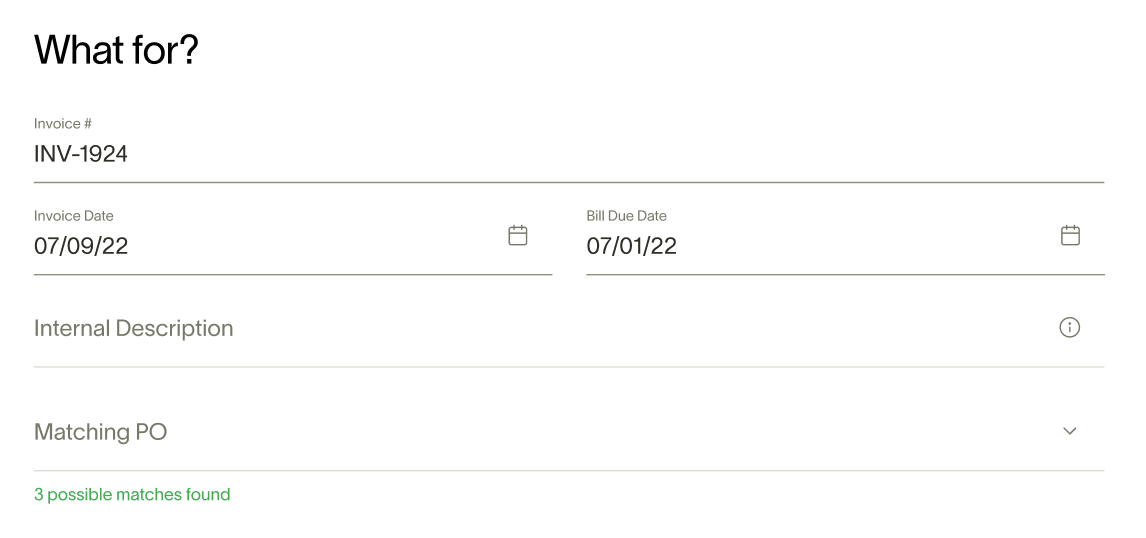
When creating a new bill in Ramp, you can link an imported Purchase Order (PO) to the invoice. The POs will be organized by subsidiaries, so make sure to select the correct subsidiary when matching POs to invoices. You can only view POs in the matching PO dropdown on a bill.
If the PO number is included on the invoice, Ramp will use OCR technology to scan the invoice for the purchase order number and will automatically attempt to match it to an imported PO. Additionally, you can edit the accounting category or inventory field even if a PO is matched to a bill, as long as the PO isn't synced to the ERP. Bill-level accounting fields will be automatically pre-populated when you select a matching PO.
If the invoice does not indicate a PO number, Ramp will list possible matches and allow you to manually select a matching PO.
Please note: You can only link an invoice to a purchase order during bill creation. You may later unlink the purchase order from the bill, and you'll still be able to re-link or link another PO once the bill has been created.
If you're using NetSuite and QBO, you can change the PO a bill is matched to even after the bill is created.
Match multiple purchase orders to a bill
If your business uses NetSuite or Universal CSV for PO import, you can match up to 10 purchase orders to a single bill. This is useful when a vendor invoice covers items from several separate purchase orders.
Note: Multi-PO matching availability depends on your accounting integration. NetSuite and Universal CSV support multi-PO matching. Other integrations support single-PO matching only.
Select multiple POs
When creating or editing a bill, the Matching purchase order field allows you to select multiple POs:
- From Bill Pay, create or edit a bill.
- In the Matching purchase order dropdown, select each PO you want to match. You can select up to 10 POs per bill.
- Each selected PO appears as a card below the dropdown showing the PO number, vendor, total amount, and billed amount. To remove a PO, click the X on its card.
If the invoice contains multiple PO numbers, Ramp OCR automatically attempts to match all recognized PO numbers to imported POs.
Note: If a selected PO's vendor does not match the bill vendor, Ramp displays a warning with an Update bill vendor option.
Important: For NetSuite users, PO line items on a bill that has already been synced to NetSuite cannot be modified. To change PO matching on a synced bill, you can only switch to an unsynced Ramp-created PO.
Match line items across multiple POs
When multiple POs are matched to a bill, each bill line item has a Match a PO line item dropdown where PO line items are grouped by PO number. Each option displays "from PO-XXXX" to identify which PO it belongs to.
Auto-matching runs automatically when POs are linked and matches bill line items to PO line items across all selected POs. When a PO number appears on an invoice line, Ramp routes that line item to the corresponding PO before running amount-based matching.
With multiple POs matched, every non-tax bill line item must be either matched to a specific PO line item or explicitly excluded from PO matching. Tax line items are automatically assigned to the first matched PO. This differs from single-PO matching, where unmatched bill line items automatically fall back to a header-level PO link.
You can also match line items in bulk from the dedicated matching page by clicking Match line items in the line item status banner.
Exclude a line item from PO matching
To exclude a bill line item from counting toward a matched PO, select Do not count towards PO from the line item menu (⋯). Excluded line items display "Excluded from purchase order" and do not affect PO billing totals.
To reverse this, select Count towards PO from the same menu.
If all bill line items on a multi-PO bill are excluded, Ramp prompts you to confirm unmatching the purchase orders from the bill entirely.
Multi-PO matching constraints
- A single PO line item can only be matched to one bill line item within the same bill. The same PO line item can be matched across different bills.
- Multiple PO line items cannot be matched to a single bill line item.
- Tax line items are automatically assigned to the first matched PO and cannot be manually matched to a specific PO line item.
- Overbilling protection works at the line item level and is unaffected by multi-PO matching.
Syncing bills with linked POs
If a Purchase Order is linked to an invoice on Ramp, the bill and linked PO will sync back to your accounting software once that bill is created. If all the items on the purchase order are paid for from the bill(s) processed in Ramp, the purchase order will automatically close in your accounting software (if configured).
NetSuite users: if receiving is set up, you can 3-way match the linked Bill and PO to the associated Item Receipt.
Unlinking a linked PO
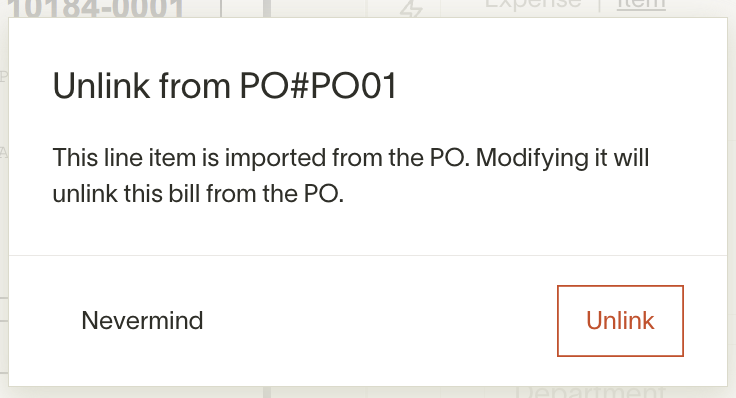
If you would like to unlink a Purchase Order from an invoice, you may do so by deleting or modifying the line items associated with the PO. Ramp will warn you when modifications will unlink a connected PO.
Frequently asked questions
How often and when do POs get imported?
We import POs for every business daily at midnight, and anytime a user from a business visits the Bill Pay or Procurement tabs
Why are my POs from NetSuite not imported if I enabled importing 24 hours ago?
Ensure that all of your NetSuite categories are enabled in Ramp. Not doing this can cause syncs to fail. Go to "Accounting", then "Settings" to view the categories that aren't enabled in Ramp.
Can Ramp’s POs be paid down by bills from another Bill Pay solution?
No, Ramp’s POs can only be paid down by bills created and matched in Ramp.
Can I match multiple POs to one bill?
Yes, if your accounting integration supports multi-PO matching (currently NetSuite and Universal CSV). You can match up to 10 POs to a single bill. See Match multiple purchase orders to a bill for details. You can also match one PO to multiple bills to fulfill the spend.
Can I issue virtual cards against an ERP-imported PO?
No. Virtual cards and funds can only be issued against POs created natively in Ramp. POs auto-imported from your accounting provider are for bill matching only. If you need to pay a vendor with a Ramp virtual card tied to a PO, create the PO in Ramp and issue a virtual card from there.
Can you continue to match bills to POs after they’re fulfilled?
Yes. Ramp does not block you from continuing to match Bills to POs after they’re fully billed. If you do match bills to a fully billed PO, Ramp will indicate the amount “overspent” on the PO.