Travel Manager Permissions
Overview
Available on Ramp Plus. See Ramp Plus overview for plan details.
Travel Manager permissions let designated users book trips on behalf of other employees and manage travel settings for the company. This article explains how admins can create and assign a Travel Manager Custom Role, and how Travel Managers can book, manage bookings, and update travel policy settings in Ramp.
How to set it up
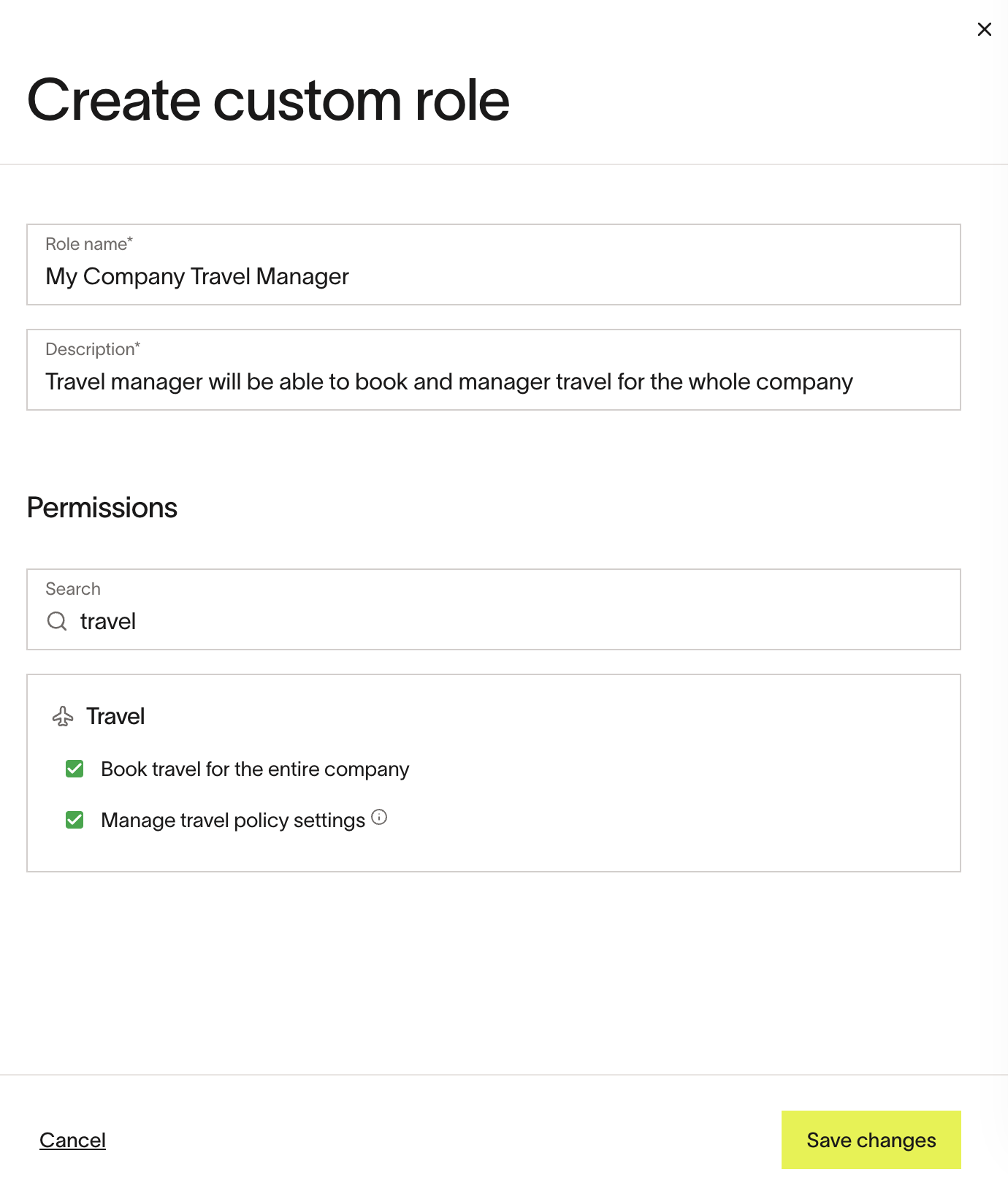
Note: Travel Manager permissions are automatically applied to all admins. To assign them to a regular non-admin user, create a custom Travel Manager role with these permissions, then assign the user to that role.
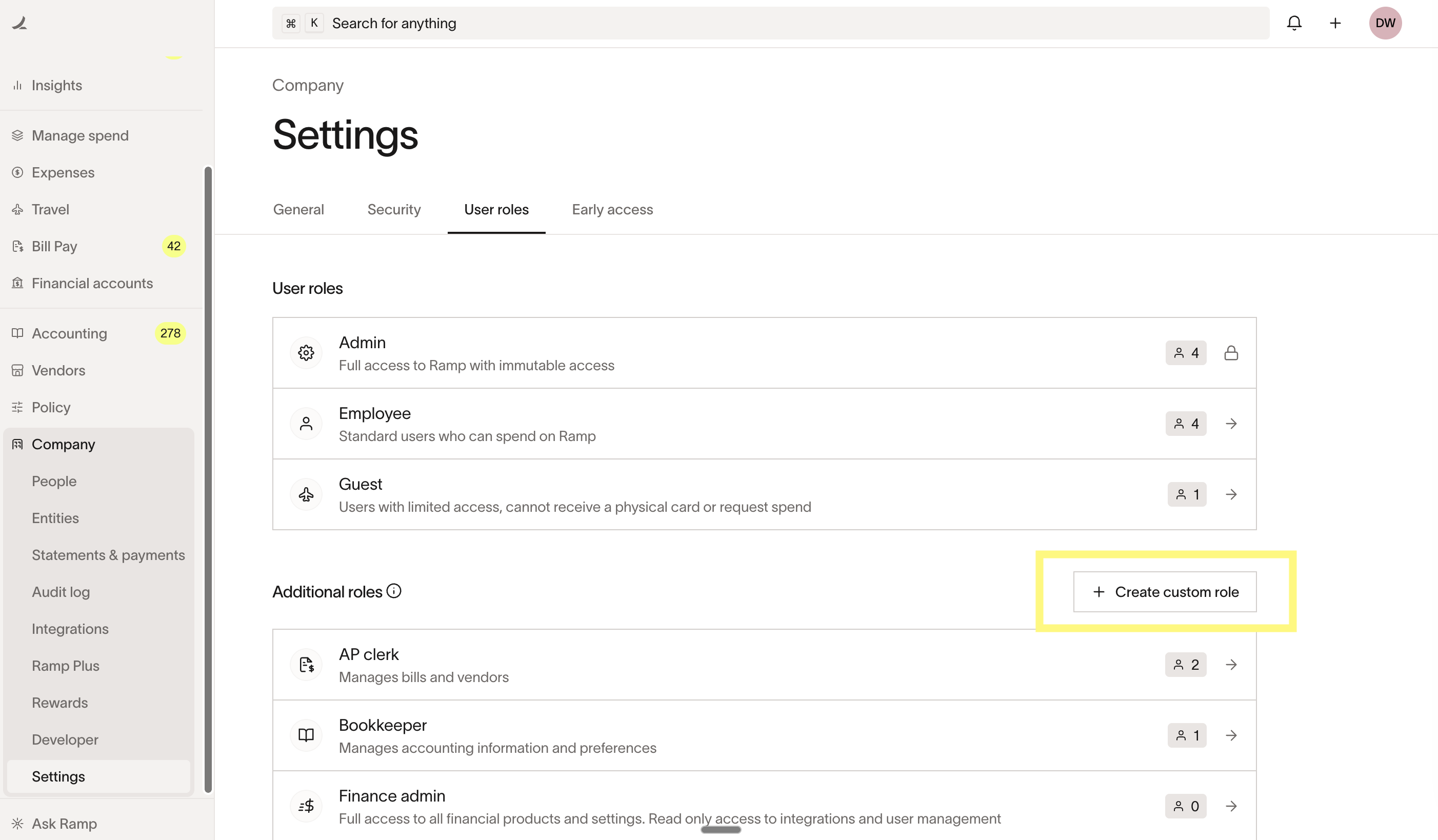
To create a Custom Role, admins should go to the Company>Settings> User roles page and create a new Custom Role with Travel Manager permissions. Read more about Creating a Custom Role.
How it works
A user with the Travel Manager permissions can book travel for the entire company and/or manage travel settings.
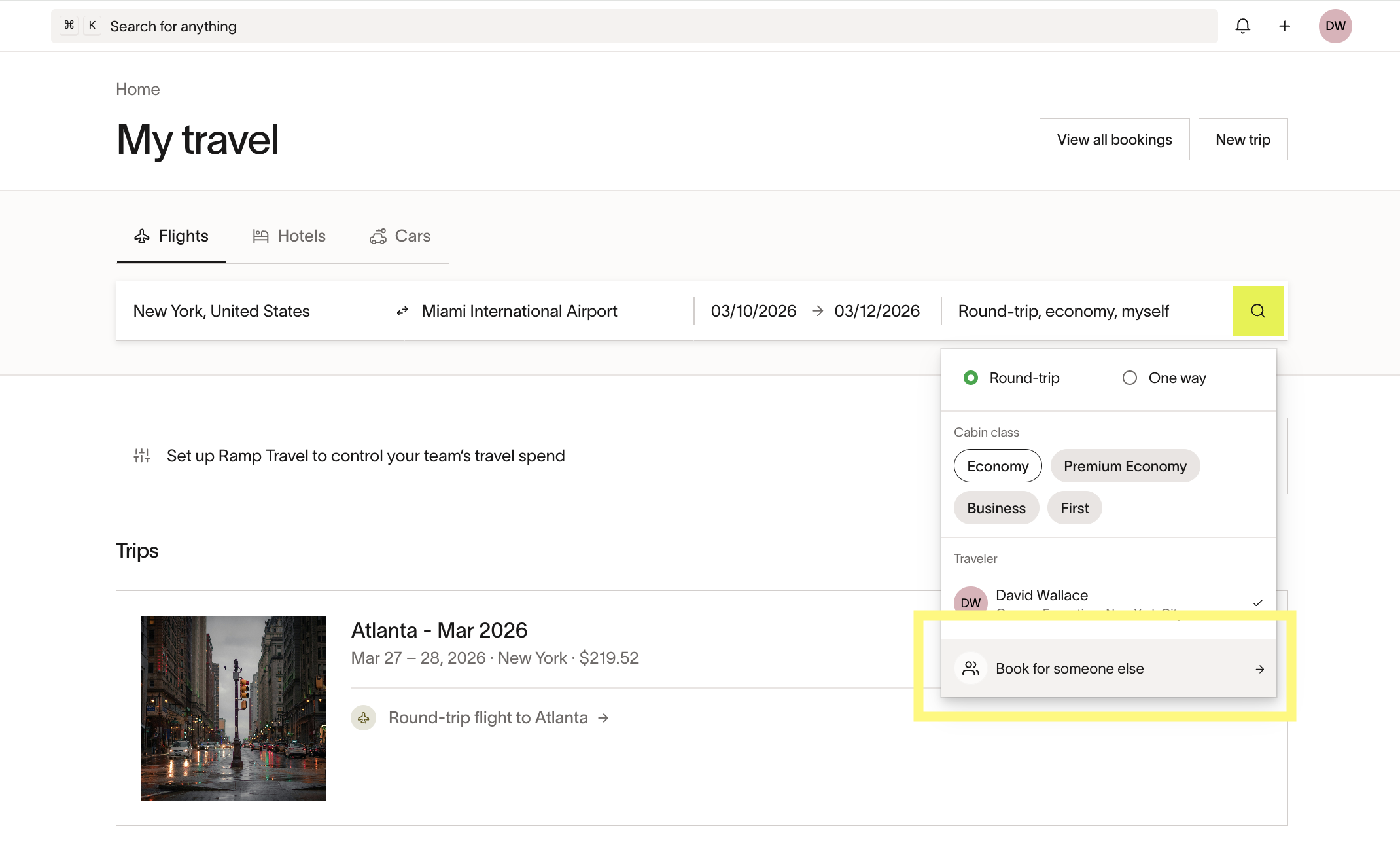
To make a booking
Go to the My Travel page, select Book for someone else, and book a trip for any employee in your company:
To manage a booking
Go to My Travel page -> View all bookings-> locate the booking made for another traveler:
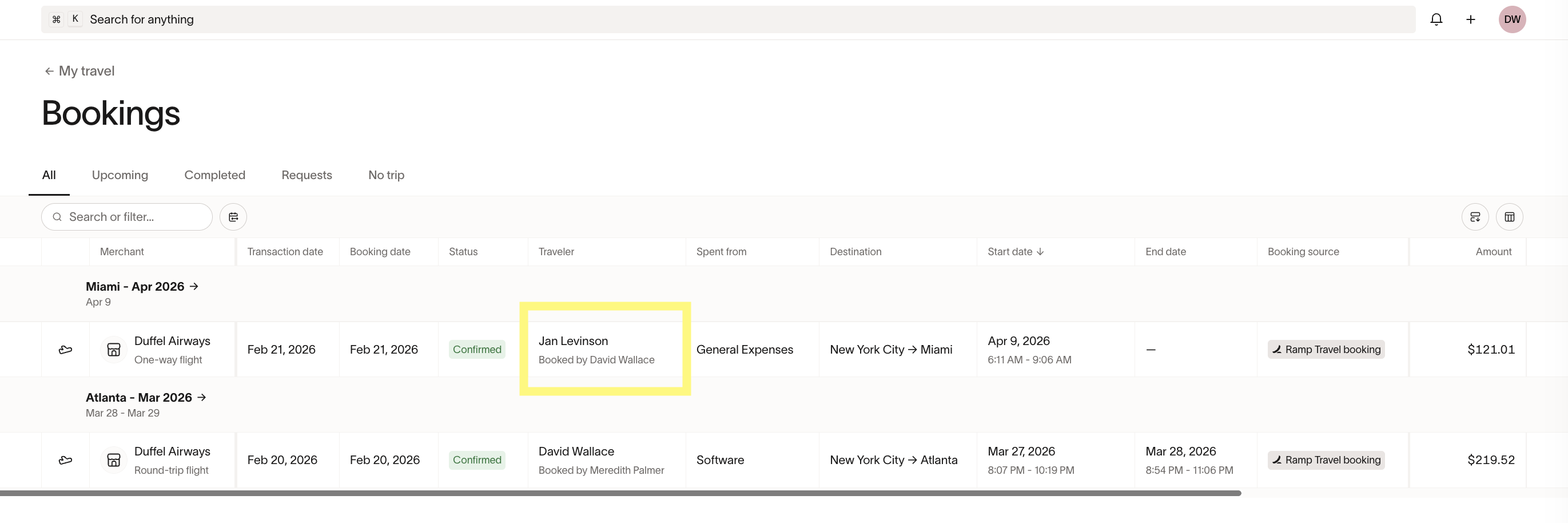
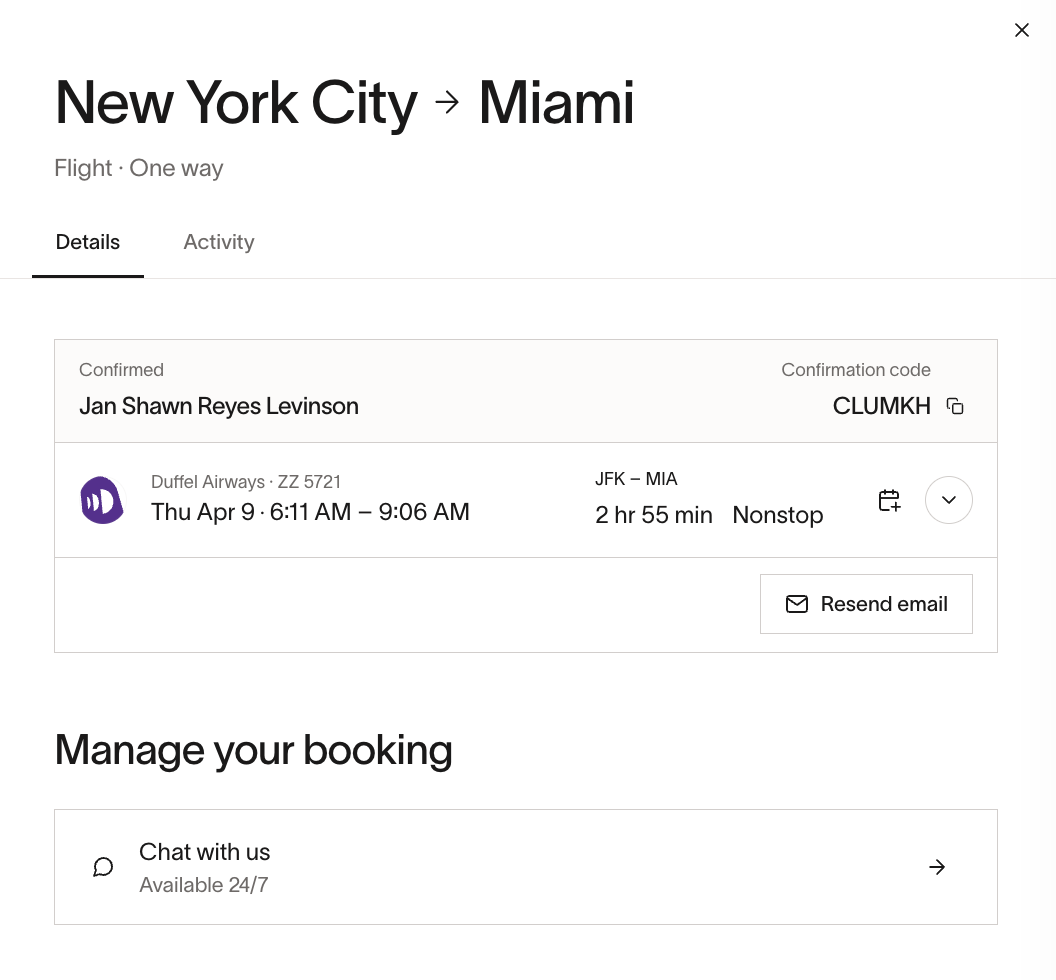
Click on a booking to open the booking details page and confirm the available support options, including Chat with support:
To manage company travel settings To manage your company travel settings in Ramp, go to Travel page and open the Travel policy page.